
A home server changes how your files, photos, and backups actually behave day to day. The right enclosure gives every device on your network fast, reliable access to the same library, with redundancy that survives a single drive failure. The picks below balance capacity, throughput, and physical footprint for the kinds of homes where quiet operation and modest power draw matter as much as raw specs.
A Snapshot Of The Selections
Sysracks 18U 4-Post Open Frame Server Rack

Synology DiskStation DS1019+ 5-Bay NAS

ZIMA CUBE 6-Bay Desktop NAS (i3, 256GB NVMe)

ZIMA CUBE 6-Bay Desktop NAS (i5, 16GB DDR5)

Synology DiskStation DS920+ 4-Bay NAS

Synology DiskStation DS1621+ 6-Bay NAS
Sysracks 22U Wall Mount Server Rack Cabinet
Inside Each Recommended Option
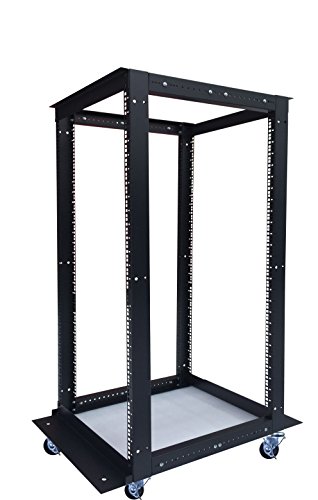
Before any of the drives, switches, and NAS enclosures in this list earn a spot in your home, you need somewhere to physically mount them, and that is where an open-frame rack earns its keep. The Sysracks 18U 4-Post Open Frame Server Rack is a rolling, adjustable-depth steel frame designed to hold standard 19-inch gear.
Its depth adjusts from roughly 24 to 37 inches, which means you can slide in shallow 1U components, full-depth servers, or anything in between without forcing anything. Heavy-duty casters with brakes let you roll the whole setup out for cleaning or behind-the-rack cable work, then lock it down once everything is settled. Cage nuts ship in the box, and assembly is intentionally light on special tools.
Good Reasons To Consider
- Adjustable depth from 24 to 37 inches fits a wide range of gear.
- Locking casters make the whole rack easy to reposition.
- Open frame design promotes strong airflow around hot-running components.
- Cage nut hardware is included, so you can start mounting right away.
- Standard 19-inch rails accept most NAS, switch, and patch panel gear.
Trade Offs
- No side panels or door, so dust tends to settle on equipment over time.
- Open frames look industrial in a living space.
Key Product Details
Built With In Mind
Hobbyists running a growing home lab in a garage, basement, or utility room who want rack-style organization without committing to a full enclosed cabinet.
Look Elsewhere When
Homeowners in a finished living space will prefer the Sysracks 22U Wall Mount Server Rack Cabinet, which hides gear behind a locking glass door.
The Synology DiskStation DS1019+ slots into the sweet spot for households that have outgrown a simple external drive. Five drive bays give you room for a mix of capacity drives and a hot spare, while the 8GB of DDR3L memory (split across two modules) keeps the operating system responsive even when multiple family members stream, sync, and back up at once.
Its quad-core CPU includes hardware-accelerated AES-NI encryption, which means your encrypted folders don’t take a major throughput hit when you turn on full-volume protection. The 120W power supply runs comfortably on standard home circuits, and DSM (DiskStation Manager) makes the setup process approachable even for first-time NAS owners.
Points In Its Favor
- Five bays support RAID 5 or 6 with room for a hot spare.
- 8GB of RAM across two modules helps with multi-user workloads.
- Hardware-accelerated encryption keeps protected folders fast.
- DSM software is widely regarded as approachable for newcomers.
Things To Consider
- Diskless, so drive costs add up on top of the enclosure.
- No 10GbE (10-gigabit networking) port, so very heavy multi-user workloads may saturate the 1GbE links.
- DDR3L memory limits future upgrade paths compared to newer DDR4 or DDR5 platforms.
Made For
Small offices and prosumer households with multiple users who want polished software, encryption, and enough bays to grow into a proper media library.
Swap It Out When
Anyone needing more raw capacity or a faster CPU for virtualization should look at the ZIMA CUBE 6-Bay Desktop NAS (i5, 16GB DDR5) instead.
The ZIMA CUBE 6-Bay Desktop NAS (Intel i3) leans into a layout more common on small servers than on consumer enclosures. Six 3.5-inch bays handle your bulk HDD (hard disk drive) storage, while a dedicated NVMe (Non-Volatile Memory Express, a fast solid-state interface) tier is reserved for active projects, AI photo indexing, and app storage that would otherwise slow down a spinning array.
The 12th Gen Intel Core i3-1215U gives this box enough headroom for Docker containers (lightweight, isolated app environments), Plex media serving, and modest virtual machines, and the dual PCIe 4.0 expansion slots leave room to add 10GbE networking or extra M.2 storage later. If your workload mixes long-term archives with fast, everyday working files, the two-tier design makes sense.
Noteworthy Benefits
- Dedicated NVMe workspace tier keeps active projects snappy.
- Dual PCIe 4.0 slots leave room for 10GbE or extra SSD storage.
- x86 CPU (standard desktop-class processor architecture) runs Docker and VMs comfortably.
- Six bays offer more capacity headroom than typical 4-bay units.
Worth Noting
- Not all home users will use the full power of an x86 platform.
- Drives sold separately, so total cost climbs quickly once you fill the bays.
- Desktop form factor, so it needs a spot with reasonable airflow.
Feature Snapshot
Right Fit For
Creators and home users juggling a mix of large archives and fast working files who want one box to handle media libraries and Docker apps at the same time.
Consider Something Else When
Beginners who mainly want a simple photo and document backup will find the Synology DiskStation DS920+ easier to set up and live with day to day.
Step up to the ZIMA CUBE 6-Bay Desktop NAS with the Intel i5-1235U, and the difference is the kind of headroom that makes heavy multi-service workloads feel calm. The 12th Gen i5 chip has more cores than the i3 sibling, and 16GB of DDR5 memory (the latest generation of system RAM, faster and more efficient than DDR4) gives virtual machines and container stacks room to breathe.
You still get the same six-bay layout plus a dedicated NVMe tier for editing cache, AI photo indexing, and app storage, and dual PCIe 4.0 slots are there for 10GbE upgrades. For households running Plex, multiple Docker services, and a few light VMs at once, this is the configuration where the platform starts to feel like a proper small server rather than a glorified file share.
What Helps Most
- 10-core i5 processor handles concurrent services and transcoding.
- 16GB of DDR5 memory supports multiple VMs and container stacks.
- Dual PCIe 4.0 slots future-proof 10GbE and extra NVMe upgrades.
- Hybrid 6-bay plus NVMe layout balances capacity and speed.
Honest Caveats
- Power draw is higher than the i3 model, so running costs add up over time.
- Most home users won’t fully load the CPU, so it may feel like over-spec for simple backups.
- Drives are not included, so the final build is more expensive than the headline price suggests.
Feature Card
Whose Shelf It Belongs On
Power users running virtual machines, container stacks, and media transcoding at the same time who want one quiet box to do all of it.
Reach For A Different Pick When
Anyone who mostly wants polished, easy-to-manage backup software will be happier with the Synology DiskStation DS1621+, which trades raw specs for mature DSM features.
The Synology DiskStation DS920+ is the kind of box a family can plug in, mostly forget, and trust to keep years of photos safe. Four drive bays are enough to run a sensible RAID (Redundant Array of Independent Disks, a way to spread data across drives so a single failure doesn’t lose files) setup with a hot spare, and the dual M.2 NVMe slots let you add read/write cache without giving up a data bay.
Synology’s DSM software makes scheduled backups, mobile photo sync, and Plex media serving feel approachable even if you have never set up a server before. Compared with the larger DS1621+ further down this list, the DS920+ is a more comfortable fit for households that don’t need 10GbE or six bays, and a real step up in app polish over generic x86 boxes.
Everyday Advantages
- Dual M.2 NVMe slots add cache without sacrificing data bays.
- DSM software is approachable for first-time NAS owners.
- Compact desktop footprint fits on a shelf or in a small closet.
- Strong app ecosystem covers backups, photos, and media.
Small Caveats
- 4GB of base RAM is tight for heavier Docker or VM use.
- Only four bays, so capacity growth depends on drive size rather than bay count.
- Drives are not included in the box.
Who It Suits Best
Families and home users who want a reliable, low-fuss place to back up phones, laptops, and a growing photo library without learning Linux first.
Where Another Pick Suits Better
Users with several terabytes of 4K media to stream should consider the Synology DiskStation DS1621+, which adds two more bays and faster internal performance.
The Synology DiskStation DS1621+ is the model you graduate to once a household starts running real workloads: multiple editors off the same pool, a small office backing up virtual machines, or a media library that has quietly grown into the tens of terabytes. Six bays give you meaningful RAID flexibility, and the dual M.2 slots let NVMe cache accelerate HDD arrays (groups of traditional spinning drives) without consuming data bays.
Synology publishes substantial gains over its predecessor in 4K random read performance and sequential write throughput, and the chassis accepts an optional 10GbE NIC (network interface card) for situations where 1GbE starts to feel like a bottleneck. The same mature DSM software runs on this box, so the jump from a DS920+ is more about capacity and speed than learning a new interface.
What Earns Its Place
- Six bays plus M.2 cache slots give flexible storage layouts.
- 10GbE-ready via an optional NIC for heavy multi-user use.
- Scales further with DX517 expansion units if you outgrow six bays.
- Same polished DSM experience as smaller Synology models.
Factors To Consider
- Higher cost than 4-bay models, especially once drives are added.
- 10GbE NIC is a separate purchase, not built in.
- Diskless, so you need to budget for drives alongside the enclosure.
Key Attributes
Best Suited To
Small studios and serious home users running multiple concurrent users, large media libraries, or VMs that need both capacity and faster networking.
Not Your Match When
Casual households will find the Synology DiskStation DS920+ a more comfortable size, both physically and in terms of cost to fill with drives.
Not every home server gets to live in a garage or basement. The Sysracks 22U Wall Mount Server Rack Cabinet is built for the closet, hallway, or home office where you want rack-style organization without an industrial-looking open frame on display. The 24-inch depth handles most NAS enclosures, switches, and patch panels, while the locking glass door keeps curious hands and pets out.
It ships with a built-in fan for airflow, a PDU (power distribution unit, basically a rack-mounted multi-outlet power strip), and two shelves, so a complete compact home network fits inside one wall-mounted box. Compared with the open Sysracks 18U frame earlier in this list, this cabinet trades easy access for a much cleaner finished-room appearance.
Positive Takeaways
- Wall-mounted design saves floor space in tight home offices.
- Locking glass door adds security and a finished look.
- Built-in fan, PDU, and shelves ship in the box.
- Standard 19-inch rails accept the same gear as larger racks.
Practical Considerations
- Wall mounting requires finding studs or solid backing for the rated load.
- Smaller usable depth than the open-frame Sysracks 18U, so very deep servers won’t fit.
Perfect Match For
Homeowners running a NAS plus a few switches and patch panels who want everything enclosed, off the floor, and out of sight behind a door.
A Better Fit Elsewhere
Hobbyists who frequently swap gear in and out will appreciate the open access of the Sysracks 18U 4-Post Open Frame Server Rack instead.
What Matters Most Before Choosing Nas For Home Server
How Many Bays You Actually Need
Count the devices in your home that generate data: phones, laptops, security cameras, game consoles. Most families with a single media library and basic backups fit comfortably in four bays, while households with 4K video, multiple editors, or surveillance storage benefit from six. Extra bays also let you run a hot spare, which is a drive that sits idle until another fails, then takes over automatically.
The Real Difference Between CPU Classes
A NAS CPU handles more than file serving. It runs background encryption, media transcoding (converting video on the fly so different devices can play it), and containerized apps like Plex or photo indexing. ARM-based chips (lower-power processors common in mobile and embedded devices) are fine for file storage and light streaming, while x86 CPUs in the ZIMA CUBE models handle VMs and heavier transcoding without stuttering.
Matching Network Speed To Your Habits
Most home networks run on 1GbE (gigabit Ethernet, about 125 MB/s in real terms), which is plenty for general backup and streaming. If you regularly move gigabytes of video or run multiple 4K streams at once, a 10GbE upgrade via a NIC in the Synology DS1621+ or the ZIMA CUBE PCIe slots prevents the network from being the slow link in the chain.
Physical Setup: Rack, Cabinet, Or Shelf
Where the gear lives shapes the choice. Open frames like the Sysracks 18U suit garages and basements, wall-mounted cabinets like the Sysracks 22U blend into home offices, and compact NAS enclosures like the Synology DS920+ happily sit on a shelf. Plan for ventilation, cable management, and a UPS (uninterruptible power supply) if your area sees frequent brief outages.
Key Considerations Across These Picks
Where Shoppers Go Wrong
Plenty of first-time NAS shoppers buy a diskless enclosure, then skimp on the drives themselves and end up with noisy, low-capacity consumer drives in a server designed for heavier workloads. Others fill every bay on day one, leaving no room for a hot spare, and a single drive failure becomes a stressful event. Plan capacity with growth in mind and leave at least one bay free if you can.
What Separates Premium From Basic
The jump from an entry-level four-bay ARM NAS to a six-bay x86 box with M.2 cache and 10GbE isn’t only about faster benchmarks. Premium tiers add useful headroom for transcoding, snapshots (point-in-time copies of your data you can roll back to), expansion units, and mature backup ecosystems. The Synology DS1621+ and the ZIMA CUBE i5 model both earn their higher cost by leaving real room to grow, rather than by simply feeling snappier on day one.
Frequently Asked Questions
How Much Storage Do Most Home Users Need?
For a family focused on photos, documents, and a moderate movie library, 8 to 16TB of usable capacity is usually enough to start. Households with 4K media or large project archives often plan around 30 to 50TB, which is where six-bay enclosures start to make sense.
Is A NAS Easier To Set Up Than A Custom Server?
Modern NAS enclosures ship with polished management software that walks you through drive formatting, user accounts, and backup jobs. A custom-built server gives you more flexibility, but the learning curve is steeper, and you handle OS updates and security yourself.
Can A NAS Run Plex And Other Apps?
Yes. Synology’s Package Center and the x86 ZIMA CUBE models both support Plex, Docker containers, and various media utilities. ARM-based units handle direct-play streaming well, while x86 chips are better for on-the-fly transcoding of high-bitrate files.
Do I Need A Separate Rack For My NAS?
Not necessarily. A four-bay enclosure fits comfortably on a sturdy shelf. Once you add a switch, patch panel, UPS, and possibly a second device, a rack or wall-mount cabinet helps keep cables tidy and improves airflow around the gear.
How Long Do NAS Drives Typically Last?
NAS-rated hard drives are built for 24/7 operation and commonly last five years or more in light home use. Running them in a RAID configuration, monitoring drive health, and keeping the enclosure cool all help extend usable life.